
What is the Student Portal Login System Used For?
A student portal functions as an institution’s integrated online platform for administration, academics, and finance. It is a centralized, secure system designed to empower students with 24/7 self-service access to essential academic and financial information.
Your Digital Campus Hub
Upon enrolment, the “my portal student login” becomes the primary access point to institutional resources. This digital platform streamlines administrative processes, eliminating the need for physical queues and empowering students to manage tasks efficiently from any device. The portal is the official channel through which the university disseminates critical information, from examination timetables to fee statements.
Key Functions of a Student Portal
While the portal’s designated name—such as UJ’s uLink, UCT’s Vula, or Wits’ Student Self-Service Portal—varies by institution, the core functionalities are consistent:
- Academic Records: Access and manage course registration, timetables, academic results, and official transcripts.
- Financial Services: Manage financial services, including viewing fee statements, processing payments, and applying for financial aid or bursaries.
- Course Management: Integrate with Learning Management Systems (LMS) to access course materials, submit assignments, and engage with academic content.
- Personal Information: Maintain and update personal contact information to ensure receipt of critical institutional communications.
- Registration: Complete course registration for subsequent semesters or academic years.
How to Complete My Student Portal Login: Step-by-Step
The initial portal access and authentication process is designed to be secure and efficient. Follow these steps to initiate access.
Step 1: Finding Your Portal Login Credentials
Upon acceptance and completion of initial registration, the institution issues an email to the student’s registered personal address (used during the application process). This communication is critical.
- What to look for: An email from your university’s admissions or IT department.
- What it contains: Your unique student number, your institutional email address (e.g., `1234567@student.wits.ac.za`), a temporary password, and the direct URL for the student portal login page.
Action: Check your personal email inbox and its spam or junk folder. This is the primary location for initial login credentials.
Step 2: Your First-Time Login
Once credentials have been obtained, proceed with the first-time login.
- Navigate to the Portal: Open a web browser and enter the portal URL provided in the email. Alternatively, search for “[Your University Name] student portal login”.
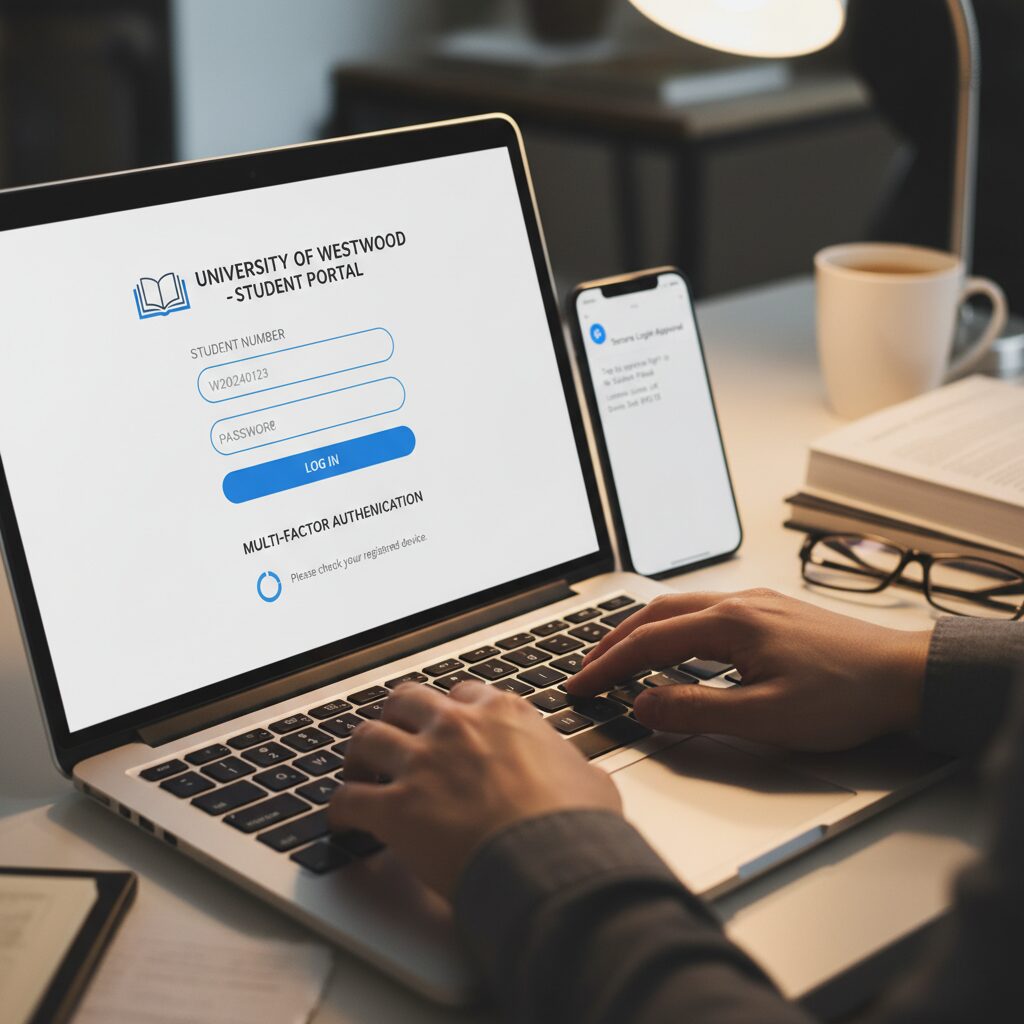
- Enter Credentials: Use your full institutional email or student number as the username and input the temporary password. Many South African universities leverage Microsoft or Google single sign-on (SSO) systems.
- Set a New Password: You will be prompted to replace the temporary password with a secure, unique one. You may also be required to configure multi-factor authentication (MFA) using an application like Google Authenticator or a secondary email address for enhanced security, a process detailed in guides like the one from Arcadia University’s IT department.
Step 3: Navigating the Dashboard
Successful authentication directs you to the main dashboard, which serves as a central control panel. This interface typically features a menu or a series of tabs labelled “Academic Records,” “Financial Aid,” “Registration,” or “My Courses.” It is advisable to take time to explore each section to familiarise yourself with the platform’s architecture.
Core Features Explored: Marks, Funding, and More
Two of the most critical functions of a student portal involve accessing academic results and managing finances.
How to Check Your Marks and Academic Progress
The portal provides a streamlined process for accessing academic results, mitigating the uncertainty of waiting periods.
- Log into your portal.
- Navigate to the tab or menu item designated “Academic Records,” “Examination Results,” “Grades,” or “Progress Report.”
- Select this option to view marks for recent assessments or final examinations. You can typically also download an unofficial academic transcript from this section.
Checking your marks is only the first step. Once you’ve secured your academic standing, the next priority is ensuring your studies are fully funded. To help you navigate the complexities of student funding, we’ve put together a How to Apply for a Bursary: A Definitive Guide to NSFAS & Financial Aid that simplifies the entire application process from start to finish.
How to Apply for Funding (NSFAS & Bursaries)
Your student portal login grants you access to the central platform for managing all financial matters, from tuition payments to applications for financial support.
- Navigate to the “Financial Aid,” “Funding,” or “Bursaries” section.
- In this module, you can monitor the status of your NSFAS application, accept funding offers, and execute digital bursary agreements.
- You can also view your statement of account, which provides a comprehensive breakdown of tuition fees and any payments or bursaries credited to your account, typically denominated in ZAR.
Effective financial management is a critical component of student success, but it starts with knowing which funding model works best for your specific situation. Many students don’t realize that their portal login allows them to manage different types of government support. To make sure you aren’t leaving money on the table, read our comparison of the Sassa Bursary vs NSFAS: How to Secure Full Government Funding to find the most sustainable path for your degree.
The Ultimate Troubleshooting Guide for Portal Login Issues
Login issues can occur, particularly during high-traffic periods such as registration or the release of academic results. This guide outlines solutions for the most common challenges.
Issue: “Lost or Missing Login Credentials”
This challenge is most common among first-year students. If a thorough check of your personal email’s inbox and spam folder does not yield the welcome email, there is a clear resolution path.
- Solution: Contact your university’s admissions office or IT helpdesk. Have your student number available for verification. They can resend the communication or provide your credentials directly.
Issue: “My Username or Password is Not Working”
This is the most frequent login error. A “portal login failed” or “invalid credentials” message can be triggered for several reasons.
- Solution 1: Verify Username Format. Ensure you are using your complete, correct institutional email address (e.g., `studentnumber@student.uj.ac.za`) and not a personal email address.
- Solution 2: Utilize the Password Reset Function. Every portal login page includes a “Forgot Password?” or “Password Reset” link. Select this and follow the prompts, which typically involve identity verification via your student number and personal email.
- Solution 3: Resolve Account Conflicts. If your institution uses a Google or Microsoft SSO, being logged into a different personal account in the same browser can create authentication conflicts. Log out of all other accounts before attempting to access the portal.
Issue: The Page is Experiencing Technical Errors or Display Failures
At times, the issue is not with your credentials but with a technical fault in your browser or the portal itself.
- Solution 1: Use a Private Browsing Window. The most efficient solution is often to open a new “Incognito” (in Chrome) or “Private” (in Firefox/Edge) browser window and attempt the login again. This bypasses interference from browser extensions or cached data.
- Solution 2: Clear Browser Cache and Cookies. If a private window resolves the issue, clearing your browser’s cache and cookies is recommended to prevent recurrence.
- Solution 3: Change Web Browsers. Some portals are optimized for specific browsers. If you encounter issues with Chrome, try Microsoft Edge or Firefox, and vice versa. According to a guide from MUST University, Microsoft Edge often provides optimal performance for portals integrated with Microsoft systems.
- Solution 4: Deactivate Pop-up Blockers. Certain portal functions launch in a new window. Ensure your browser’s pop-up blocker is disabled for the university’s domain.
Issue: “My Account is Locked”
For security, most systems will lock an account after a set number of failed login attempts.
- Solution: Wait 15-30 minutes for the system’s automatic unlock function to activate, then attempt to log in again with the correct credentials. If the account remains locked, you must contact your university’s IT helpdesk for manual reactivation.
Best Practices for Secure Student Portal Usage
- Always Log Out: Upon completion of your session, always select the “Log Out” option to terminate access, especially on a public or shared computer.
- Maintain Credential Confidentiality: Your password protects your sensitive personal information. It must never be shared with anyone under any circumstances.
- Beware of Phishing: Exercise vigilance against emails requesting your credentials. Your university will never solicit your my student portal login password via email. Only enter your details on official and secure university websites.
Stay Connected to Your Campus
Navigating university administration doesn’t have to be stressful. As this guide has outlined, your student portal is the central hub for your academic records and financial aid. A smooth portal login is the key to unlocking these resources, ensuring you are always informed about your progress and payments. If you ever encounter difficulties accessing your account, refer back to our troubleshooting tips to resolve them quickly. Remember, a successful “my student portal login” is your first step toward a hassle-free semester, keeping you connected to your institution wherever you are.