
Accessing Your Yoco Business Portal
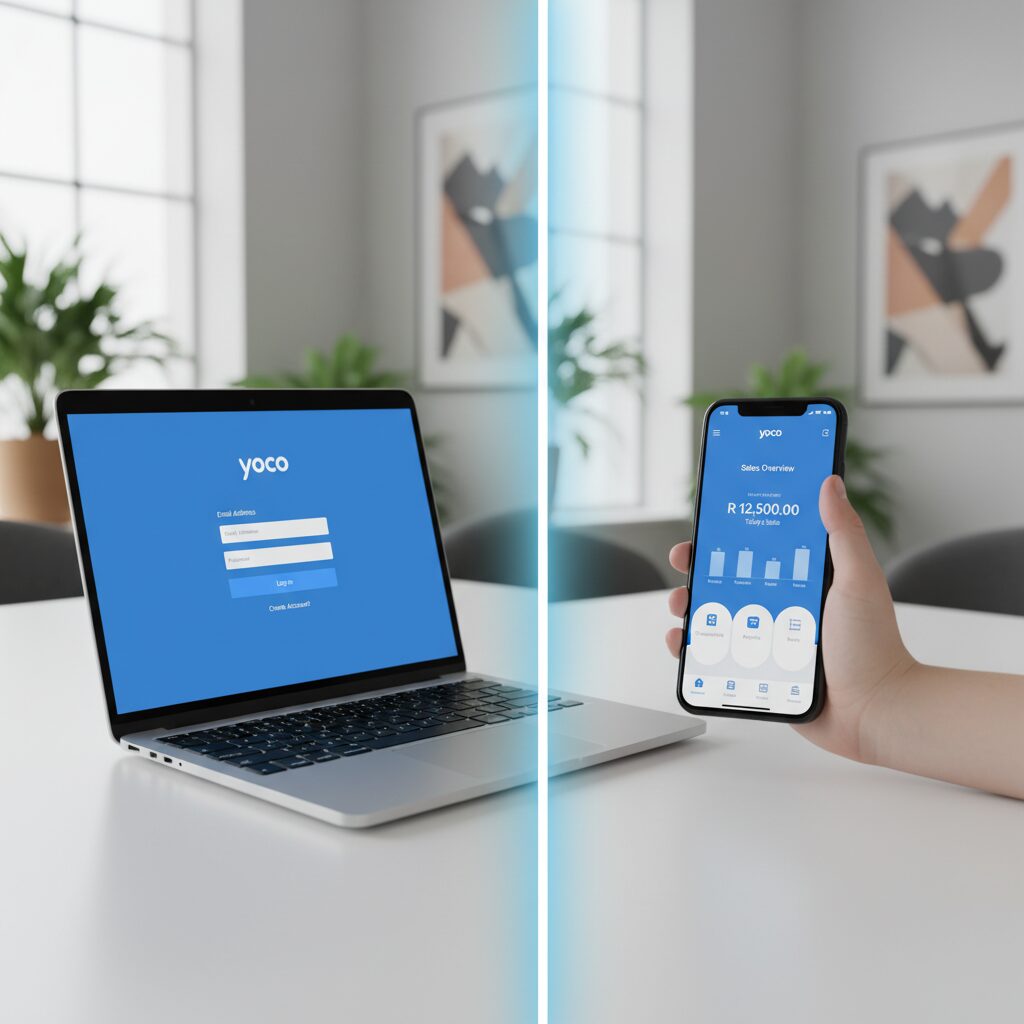
Your business data is accessible on demand through two primary methods. Both utilise the same login credentials.
- On the Web: The Yoco Business Portal is available at the Yoco web app. This interface is ideal for in-depth analysis of reports and settings from a desktop or laptop computer.
- On Mobile: The Yoco App (available for Android and iOS) provides complete mobile access to your business hub for remote management.
The Yoco Login Process
- Navigate to the web portal or open the Yoco App.
- Enter the email address or mobile number associated with your Yoco profile.
- Enter your password.
- If you manage multiple business entities, you will be prompted to select the correct one.
- You will be directed to the primary dashboard, designated as the “Hub.”
How to Securely Reset Your Yoco Password
Forgotten passwords can be securely reset to restore account access. Yoco provides a streamlined, secure protocol to manage your credentials.
If You Forgot Your Password
You can initiate a password reset from any Yoco login screen (web portal, app, or Yoco POS app).
- Select the “I forgot my password” link.
- Enter the email address or mobile number linked to your profile and select “Reset my password.”
- Yoco will transmit a reset link via email or SMS. Click the “Reset here” button within the message.
- Create and confirm your new password. Access will be restored.
If You Want to Change Your Current Password
Periodic password updates are a recommended security measure.
- Log in to the Yoco App or web portal.
- Navigate to your personal settings by selecting your name or personal icon (typically located at the bottom of the menu).
- Select “Reset password.”
- Enter your current password, then your new password, and save the changes.
- You will be required to confirm this change via a link sent to your registered email or SMS.
Navigating the Yoco Hub: Personal vs. Business Profiles
It is essential to understand the distinction between your Personal Profile and your Business Profile. According to the official Yoco user guide, these two sections govern different aspects of your account.
Your Personal Profile
This profile pertains to you, the account owner, and is accessed by selecting your name/icon. It stores your primary login and contact information.
- Profile Contents: Your full name, email address, mobile number, and password.
- User Capabilities: You can edit your email and phone number from this section. This is also where you manage your password and login security.
- Profile Restrictions: You cannot alter the name of the profile owner or their ID number, as this is linked to your business’s legal registration. To modify this data, you must contact Yoco Support.
Your Business Profile
This section governs all aspects of your business’s public-facing and operational settings within the Yoco ecosystem.
- Profile Contents:
- Business logo and trading name
- Trading address
- Banking details for payouts
- VAT number and social media links
- Configurations for receipts, tips, and payment methods
- User Capabilities: Update your logo, address, contact details, and configure receipt and tip settings.
- Profile Restrictions: Certain critical details, such as banking information linked to account verification, may be uneditable. Modifying these fields requires assistance from Yoco Support, providing an additional layer of security protocol.
Leveraging the Core Features of Your Yoco Dashboard
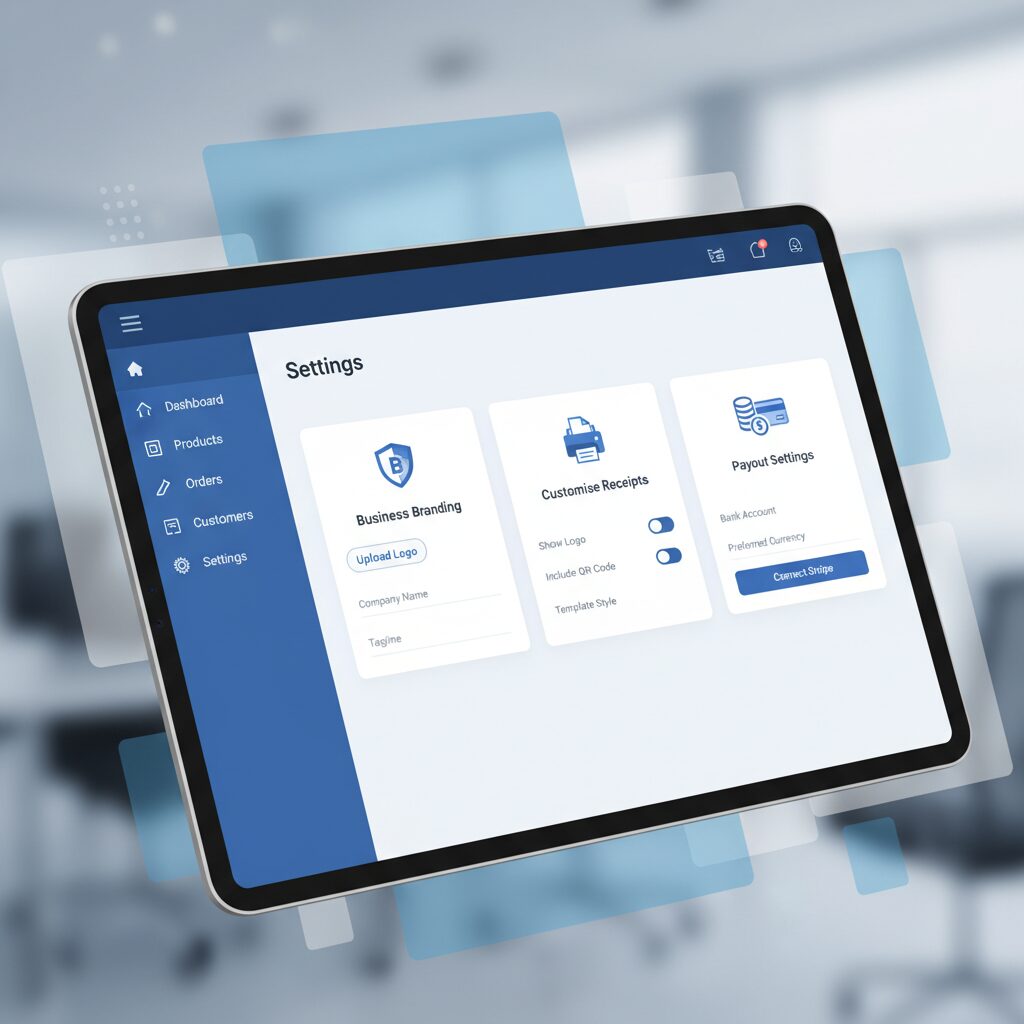
To fully leverage the portal’s capabilities, you must actively manage its features. Navigate to your yoco business portal settings to configure the following.
Business Details & Branding
The details configured here are rendered on all customer receipts. Ensure this information remains professional and current.
- Trading Name & Logo: Utilise the official name and logo that customers recognise to reinforce brand consistency and build trust.
- Trading Address: This should be your physical business location.
- Contact & Social Media: Maintain current business phone, email, and social media information to facilitate customer engagement.
Payouts & Bank Details
This section is critical for managing your cash flow. You can update your bank account details here; note that changes may require verification by Yoco.
- Best Practice: Routinely reconcile the Payout reports in your Yoco business portal with your official bank statements. This practice helps you identify any discrepancies promptly. However, tracking your funds is only half the battle.While your Yoco login secures your backend data, the efficiency of your daily sales depends entirely on the tools your staff use on the floor. If you are questioning whether the standard mobile interface is robust enough for your volume—or if you need a more advanced setup—we have broken down the pros and cons.See our full verdict: Yoco Point of Sale App Review: Is It Worth It?
Customising Receipts
Your receipts are a valuable marketing and communication asset.
- Add customised messaging: Include a professional thank-you message or a specific call to action, such as “Follow us on LinkedIn.”
- Facilitate customer communication: Add a line such as, “For inquiries regarding your purchase, please contact us at [Your Business Number/Email].”
- Ensure regulatory compliance: If you are VAT-registered, verify that your VAT number is displayed correctly as per legal requirements. You can find more details in Yoco’s guide to updating business settings.
Managing Tip Settings
For hospitality or service-based businesses, enabling the tip function is a key feature. In the “Tips” section of your business settings, you can activate or deactivate the tipping option on your card machine. This empowers customers to show appreciation and can serve as a valuable incentive for your staff.
Payment Methods
The portal allows you to manage all integrated payment channels, including in-person card payments and online payment links. Ensure all channels you employ are active and configured correctly so that your sales reports accurately reflect your business’s total revenue.
Communication Preferences
Under your business settings, you can manage how Yoco communicates with you.
- SMS Payout Alerts: For business owners who require remote access, enabling SMS alerts for payouts provides timely notification that your funds have been dispatched.
- Email Reports: Schedule daily or weekly sales summaries to be delivered to your email for record-keeping and strategic review.

Unlocking Growth with Reports & Insights
The “Reports & Insights” section is where you transform raw transactional data into actionable business intelligence. The Yoco Business Portal offers real-time analytics that enable remote business management.
- Sales Reports: Move beyond reviewing daily totals. Utilise the date filters (day, week, month) to identify trends. A slow-performing day of the week identifies an opportunity for a targeted promotion. Peak business hours indicate when optimal staffing levels are required.
- Payout Reports: These reports detail the transactions included in each payout, net of fees. Utilise them to understand your net revenue and for financial reconciliation.
- Product Reports: If you use the Yoco POS app to manage products, you can track which items are bestsellers and identify underperforming products. This provides critical data for inventory management and service offering optimisation.
Operational Best Practices for Managing Your Yoco Portal
Integrate these workflows into your standard business management routine.
Onboarding Staff to the Portal
If a manager requires back-office access, instruct them on the distinction between the Personal and Business profiles. Emphasise that they should never attempt to alter details in the Personal Profile or locked fields, such as banking information. For operational staff, access can be restricted to the POS level, which is often sufficient.
Protocol for Securely Updating Banking Information
- Prepare your new bank account confirmation documentation.
- Navigate to Business Settings > Banking Details.
- Initiate the change during off-peak operational hours, as Yoco may need to verify the new account.
- Following your next scheduled payout, verify the payout report and your new bank account to confirm the funds have been transferred correctly.
The 6-Month Business Profile Audit
Twice a year, perform a profile audit on your portal settings:
- Is your logo and trading name correct?
- Is the contact information on your receipts accurate?
- Is your VAT number correctly listed?
- Are your social media links current?
When to Upgrade Your Management System
If your goal is checking daily totals and basic settings, the standard portal works well — up to a point.
But once you need live inventory tracking, multi-location reporting, or granular staff performance data, you will get better results with a system that combines payments and full operations in one place.
That’s where Eezipay fits — with a Touch POS solution designed to give growing businesses total control over their data and stock.
Explore the Solution: View Eezipay Touch POS Systems
Talk to an Expert: Get a Custom Quote
Empower Your Business Operations
The Yoco Business Portal is more than just a digital receipt book; it is a dynamic platform designed to support data-driven decision-making. By moving beyond basic administrative tasks and fully utilizing the features accessible through your Yoco login, you unlock a much clearer view of your financial health. Whether you are reconciling payouts or optimizing staff performance, active management of this portal is the key to turning daily transactions into long-term strategic growth.